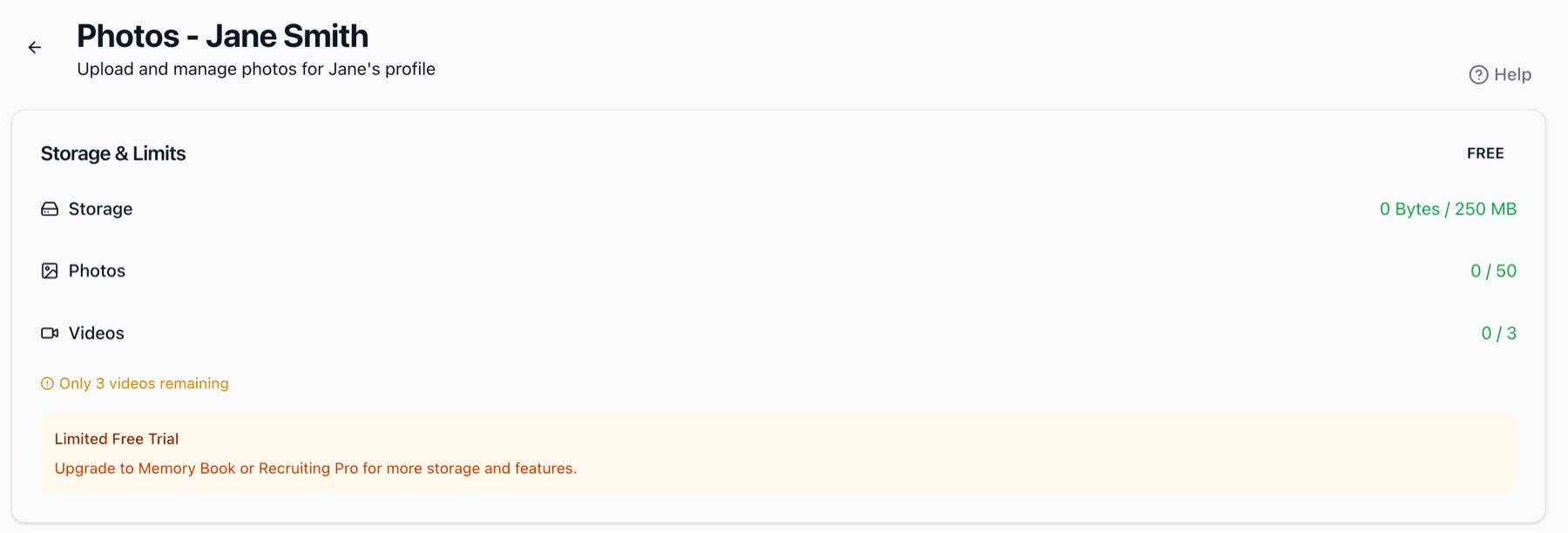
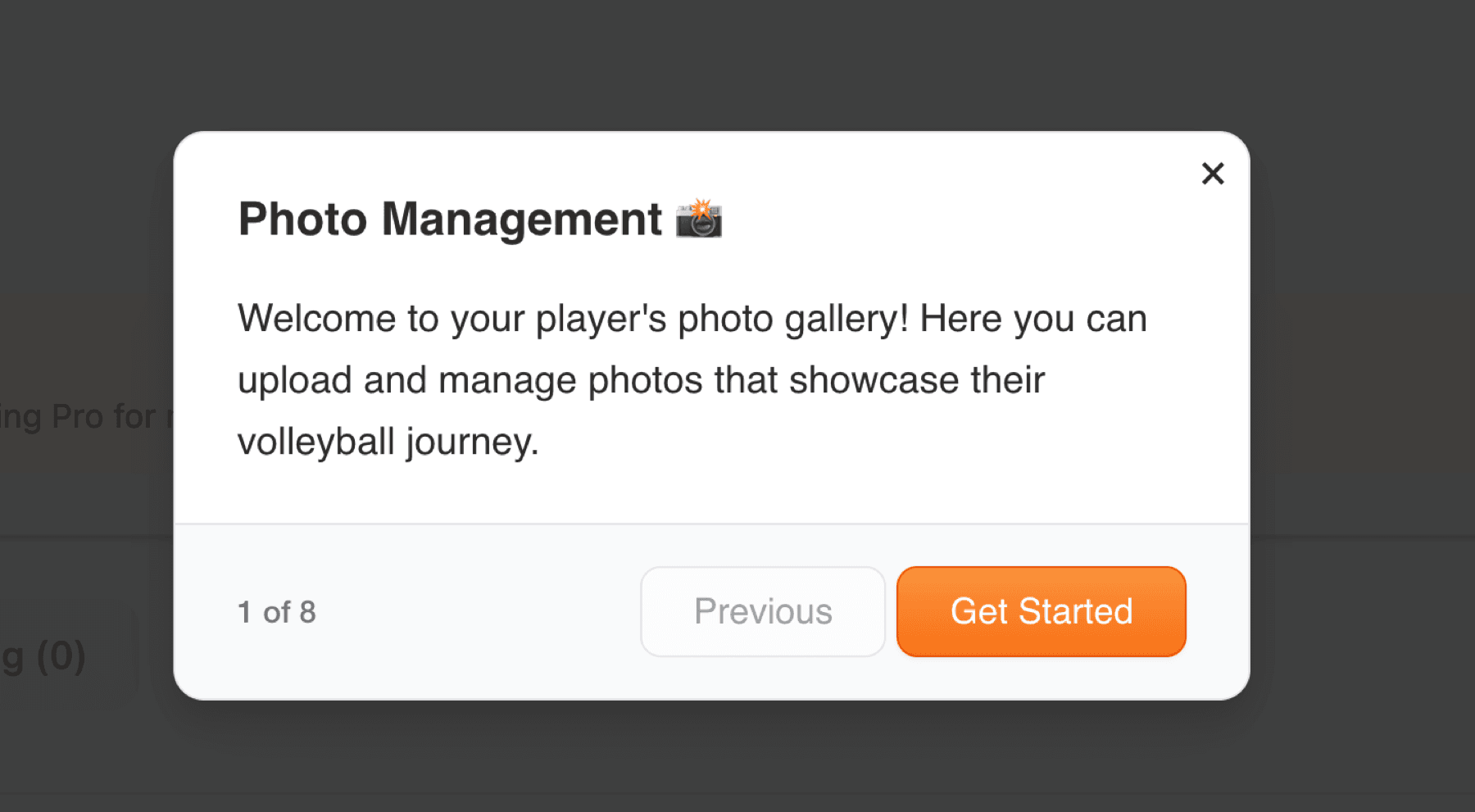
Welcome to your player's photo gallery. This is where you'll upload and manage photos that showcase their volleyball journey. All photos are manually reviewed for child safety before appearing on the public showcase. This 8-step tour will walk you through the photo management system.
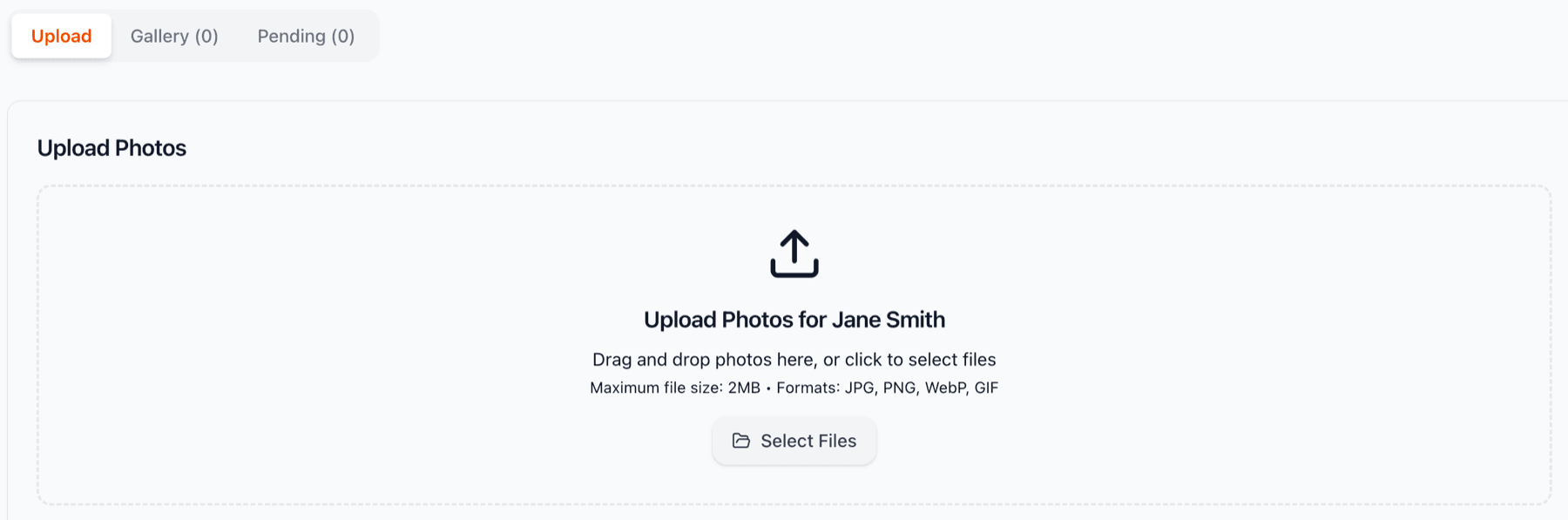
The photo section has four tabs: Upload (add new photos), Gallery (approved photos), Pending (awaiting moderation), and Rejected (photos that didn't meet guidelines). This organization helps you track the status of every photo you upload.
Drag and drop photos here, or click 'Select Files' to browse your computer. You can upload multiple photos at once for efficiency. Supported formats are JPG, PNG, WebP, and GIF. Maximum file size is 2MB per photo. Choose action shots, team photos, tournament moments, anything that tells your player's volleyball story.
After clicking 'Select Files,' browse your computer to choose photos. Select multiple photos at once by holding Ctrl (Windows) or Cmd (Mac) while clicking. This makes batch uploading much faster!
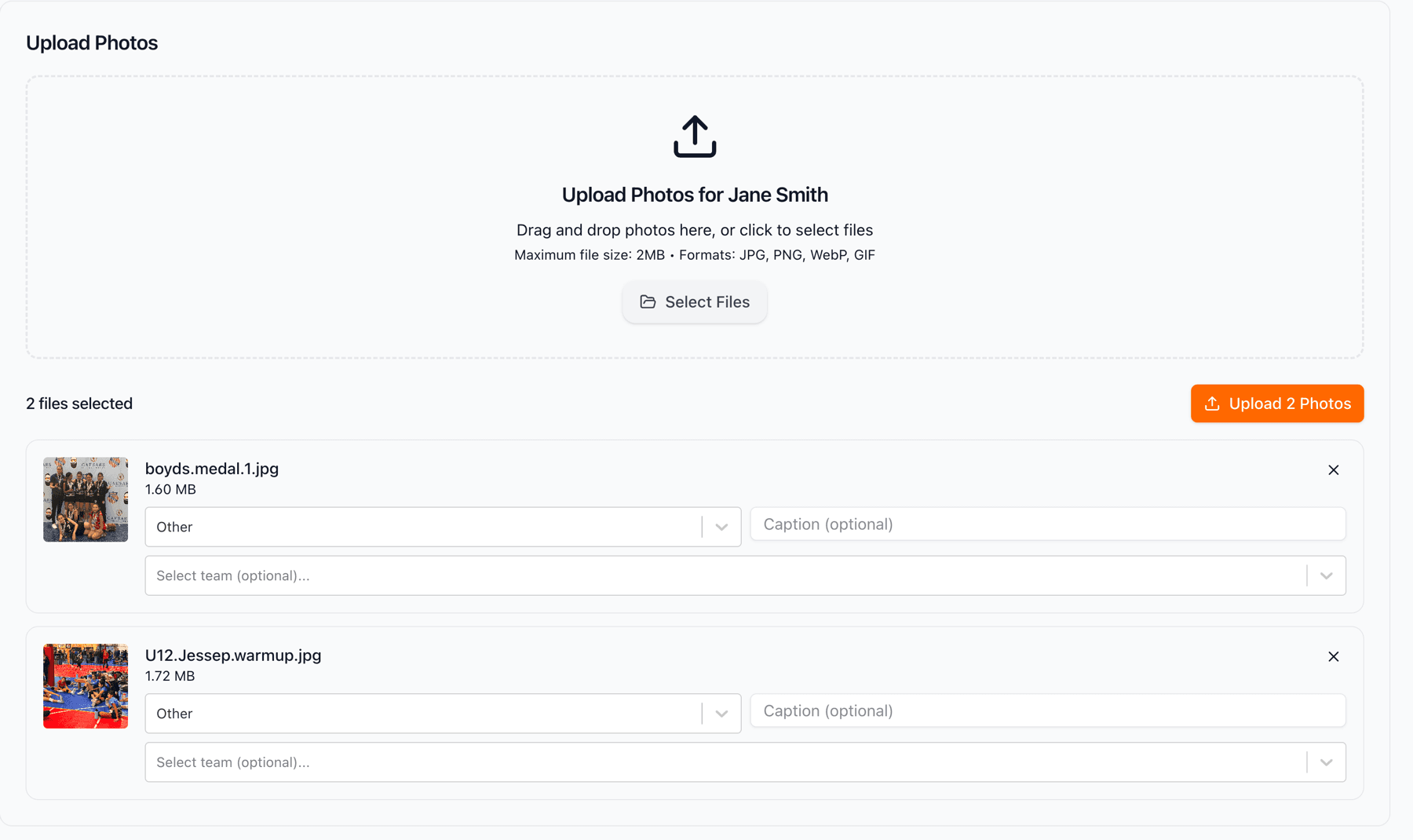
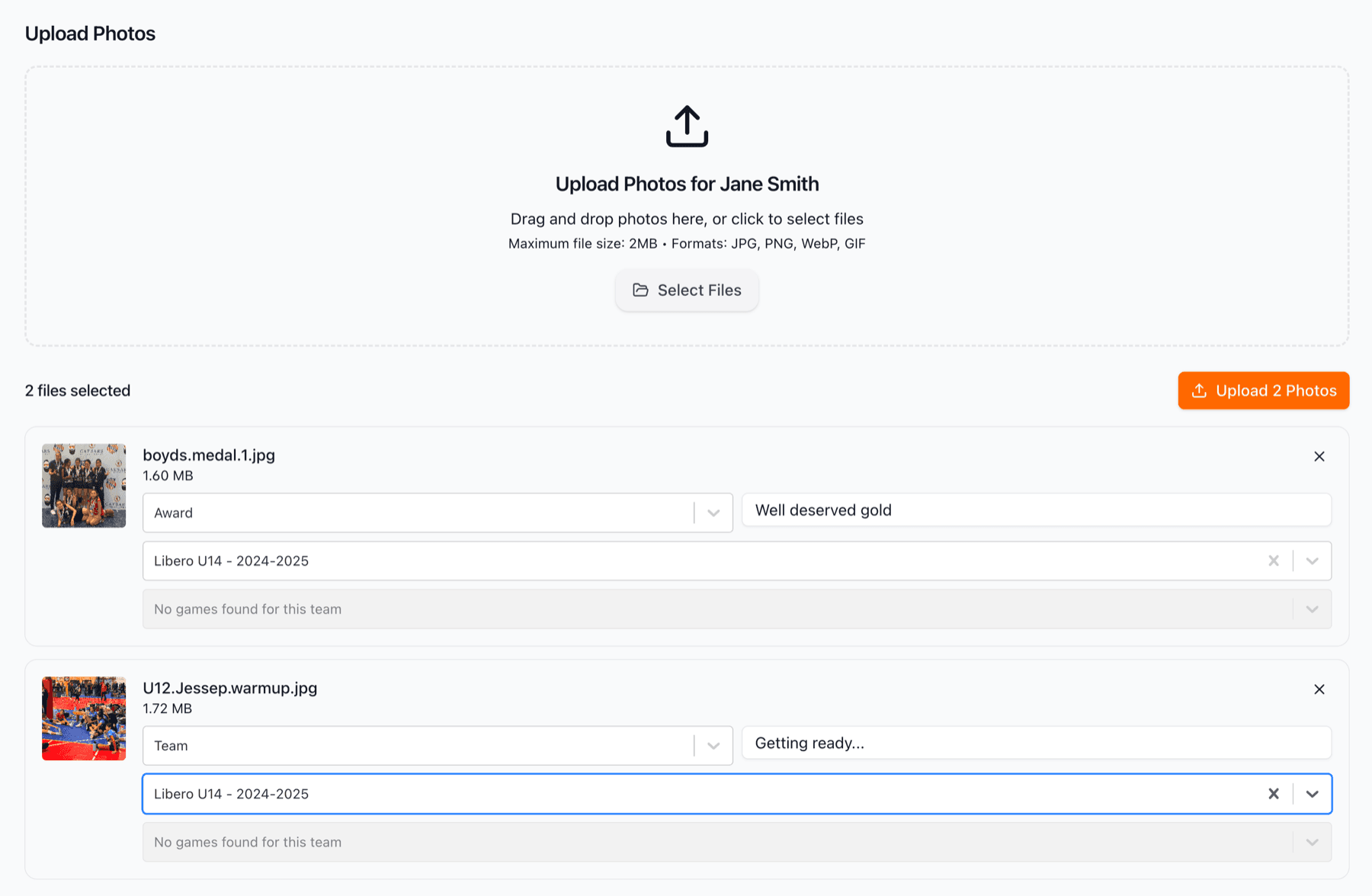
While your photos are uploading you'll see a progress indicator for each photo. Large photos may take a few moments. Once uploaded, photos automatically move to the 'Pending' tab where they await moderation approval.
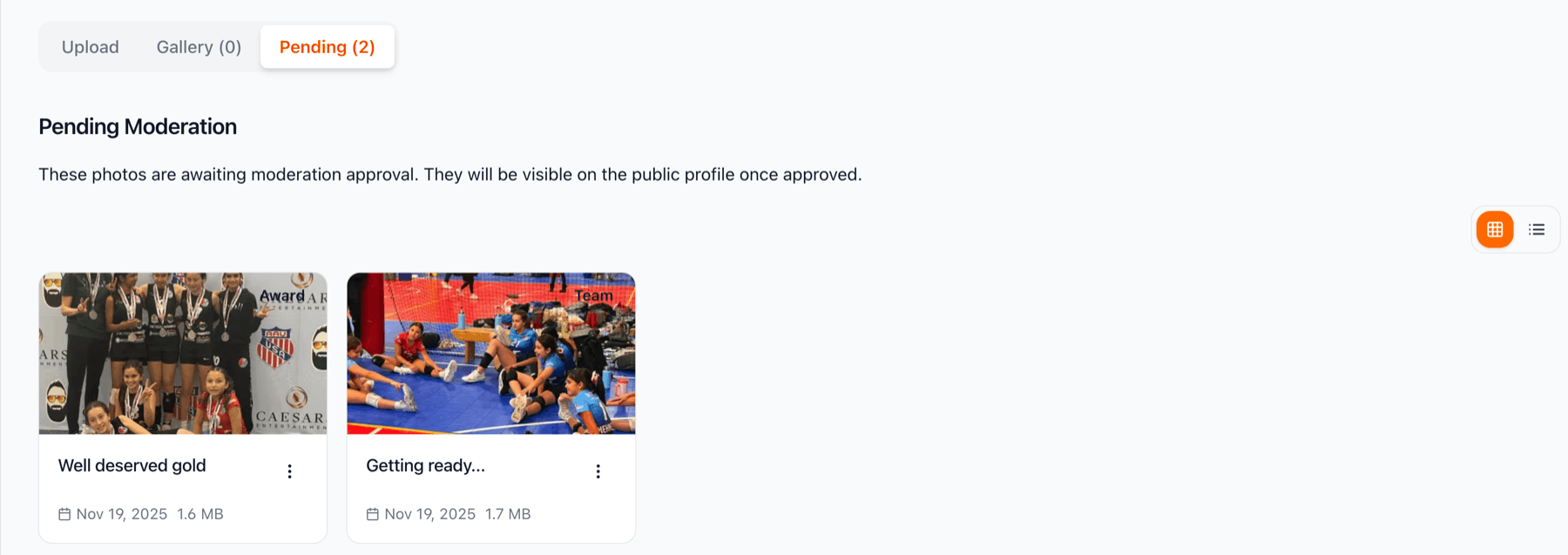
Uploaded photos appear in the 'Pending' tab while our moderation team reviews them. You can see thumbnails, captions, and upload dates. These photos are not yet visible on the public showcase. Moderation typically takes 24-48 hours. You'll receive an email notification once photos are reviewed.
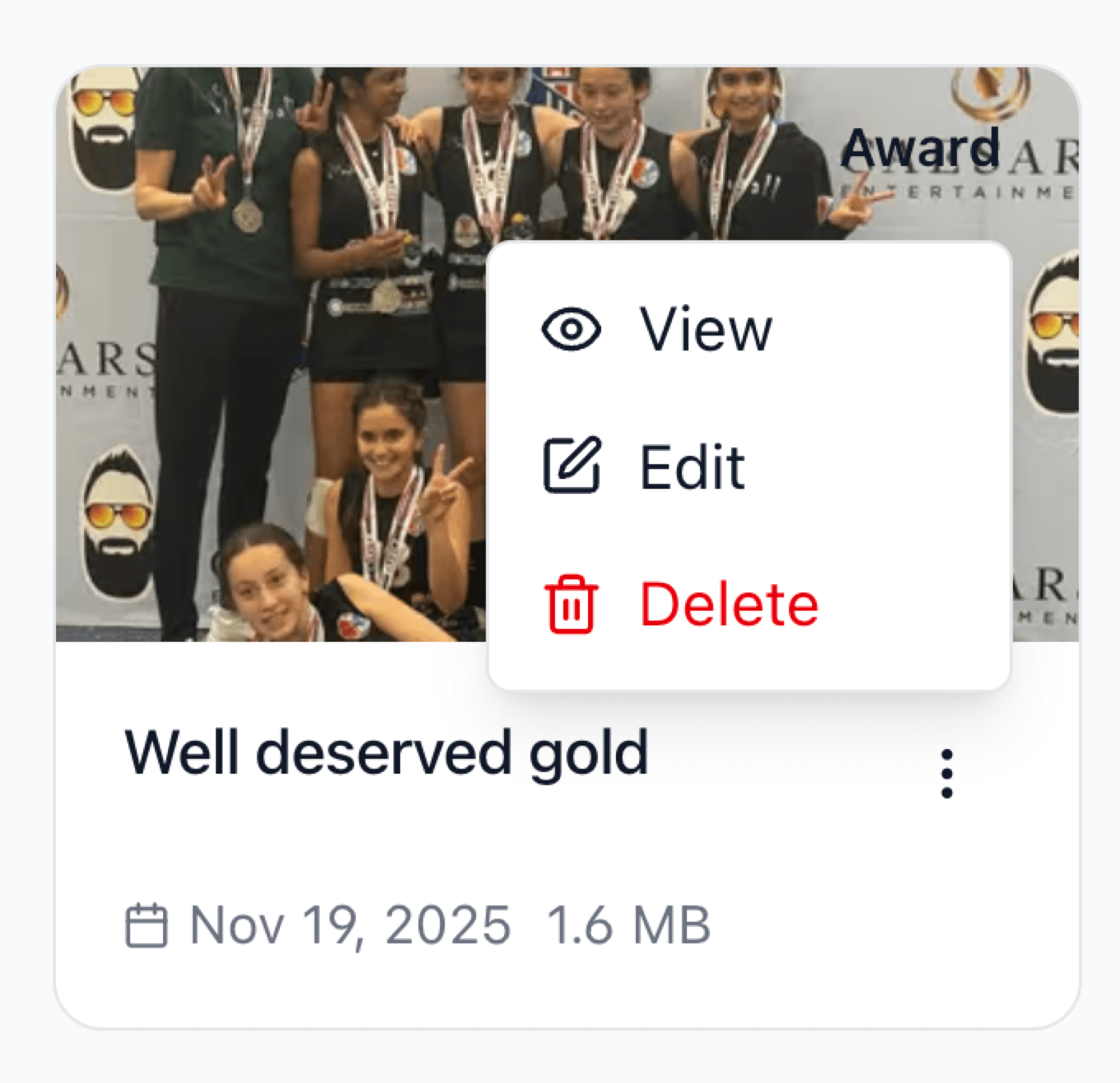
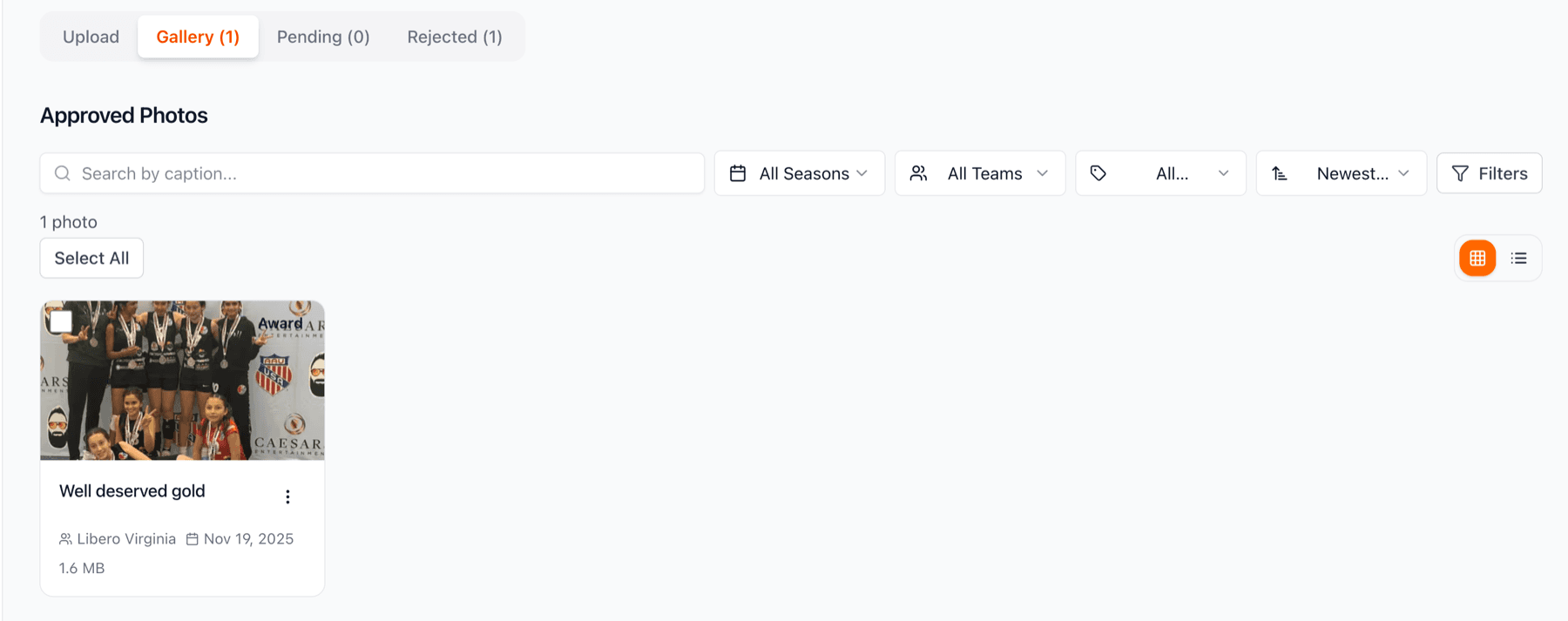
Once approved, photos appear in your Gallery tab. Click the three-dot menu on any photo to edit caption, delete, or perform other actions. You have full control over approved photos and can remove or update them anytime.
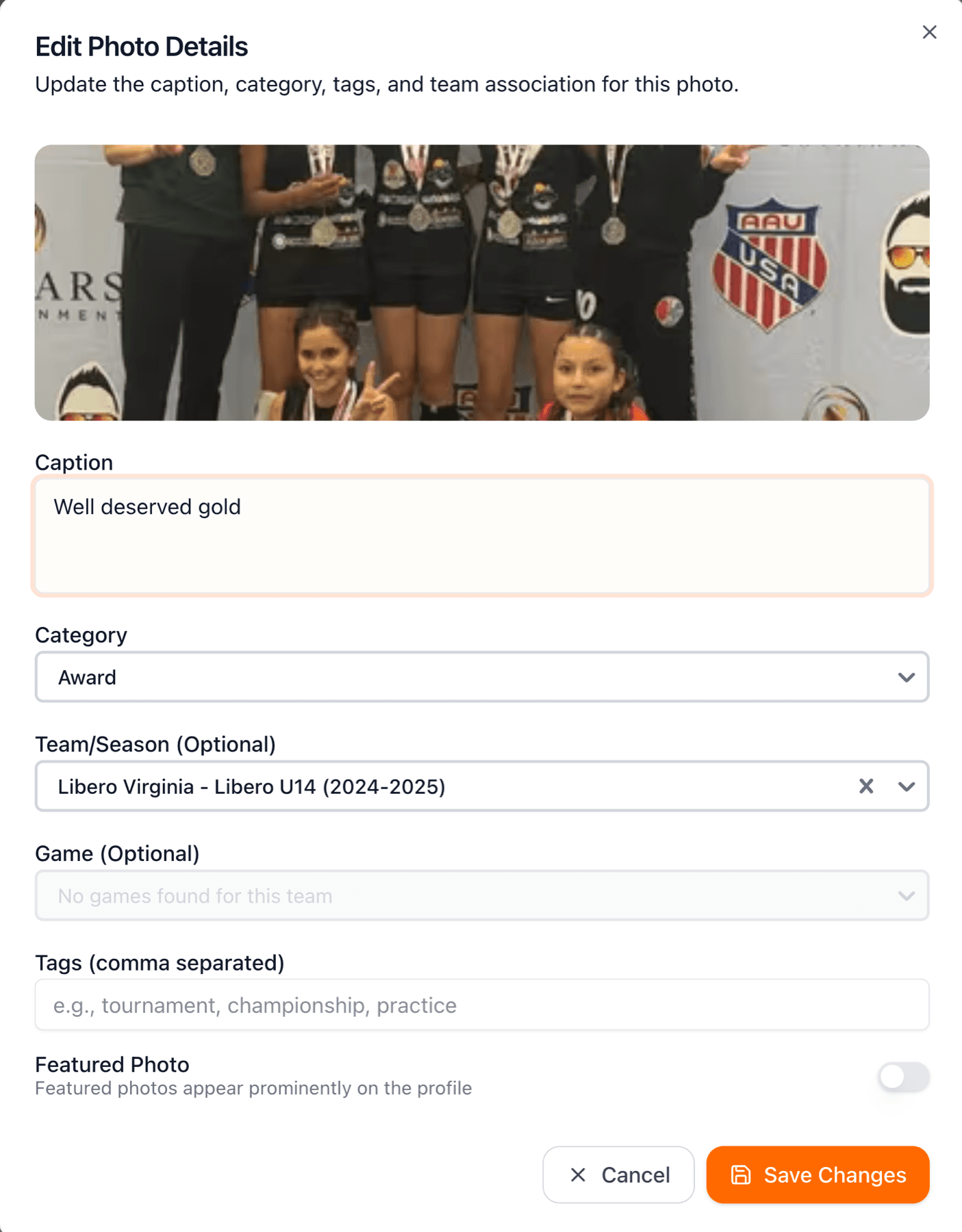
Click 'Edit' to update photo details. You can change the caption, associate the photo with a specific team, add it to a particular season, apply category tags, or even link it to a specific game. These details make photos searchable and help tell the story of each moment. Great captions add context that recruiters and family members appreciate.
The Gallery tab shows all approved photos that are live on your player's public showcase. You can filter by season, team, category, and sort by newest or oldest. Use the grid or list view toggle for your preferred layout.
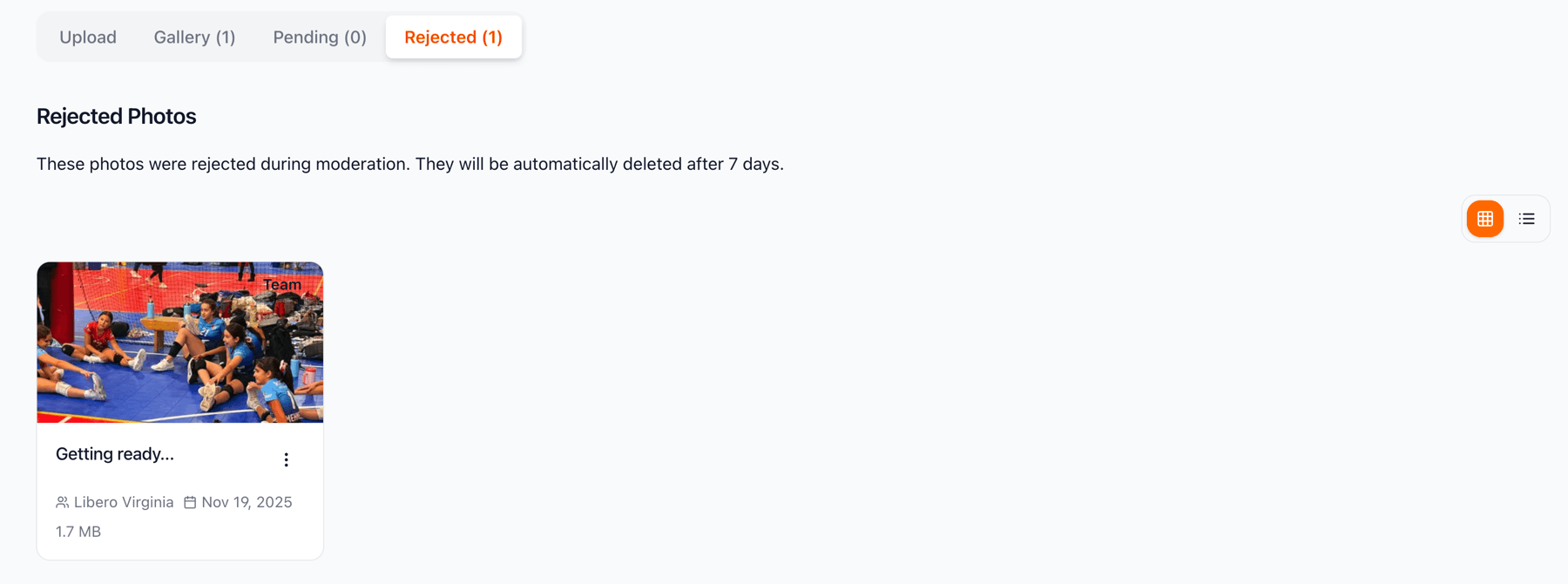
If a photo doesn't meet our guidelines, it appears in the Rejected tab. Photos may be rejected for quality issues, inappropriate content, or privacy concerns. You can view the rejection reason and delete these photos. Rejections are rare when following our photo guidelines (action shots, appropriate clothing, clear images).
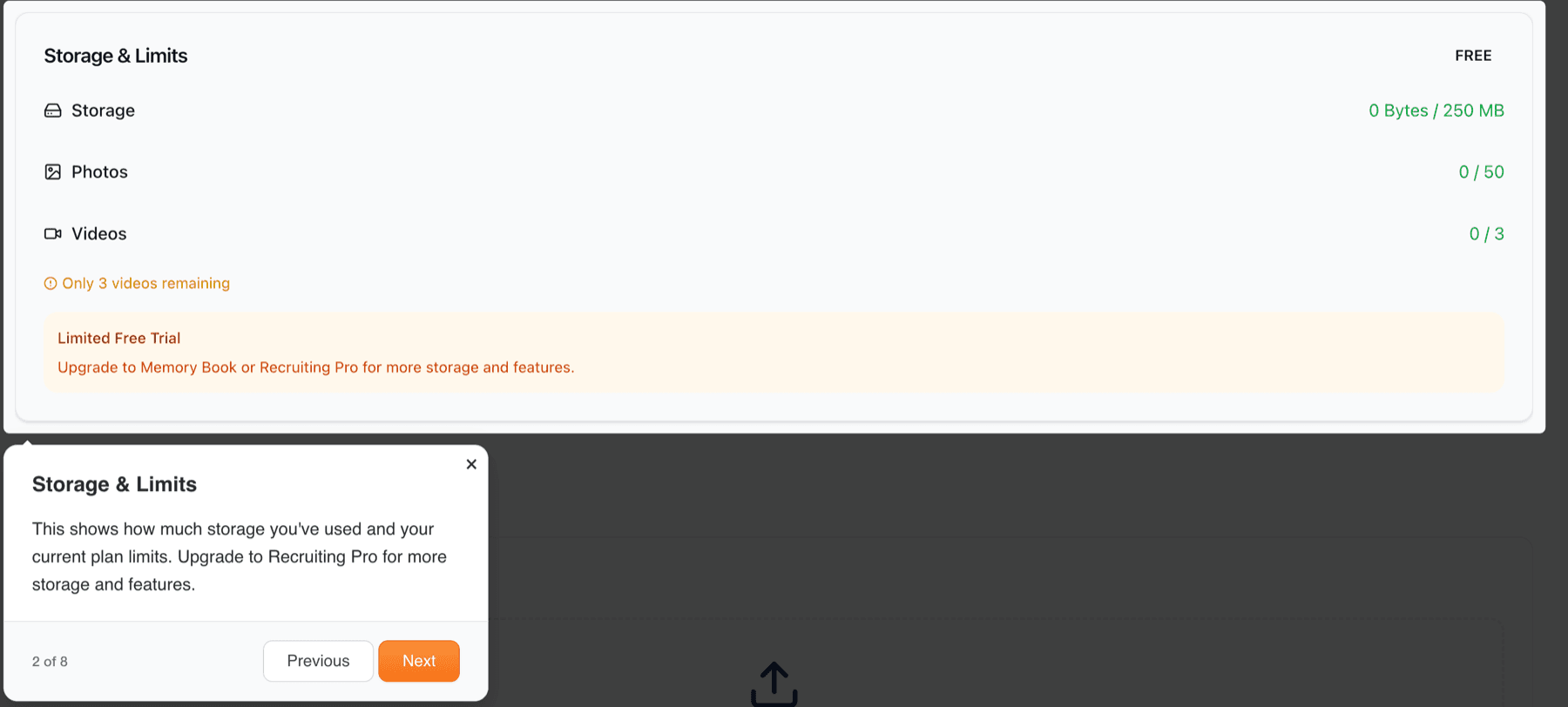
Keep track of your storage usage at the top of the photo section. Memory Book includes 500 photos, while Recruiting Pro offers unlimited photo storage. You can see how many photos you have in each status (approved, pending, rejected). Plan your uploads accordingly and prioritize your best action shots if approaching limits. You will receive email notification when you are close to reaching storage limits (which differ based on type of account, Memory Book or Recruiting Pro)