Track every game's performance across offense, defense, serving, and serve receive. Build a comprehensive statistical record that shows growth over time and impresses recruiters with data driven performance metrics. This tour will guide you through the stats system.
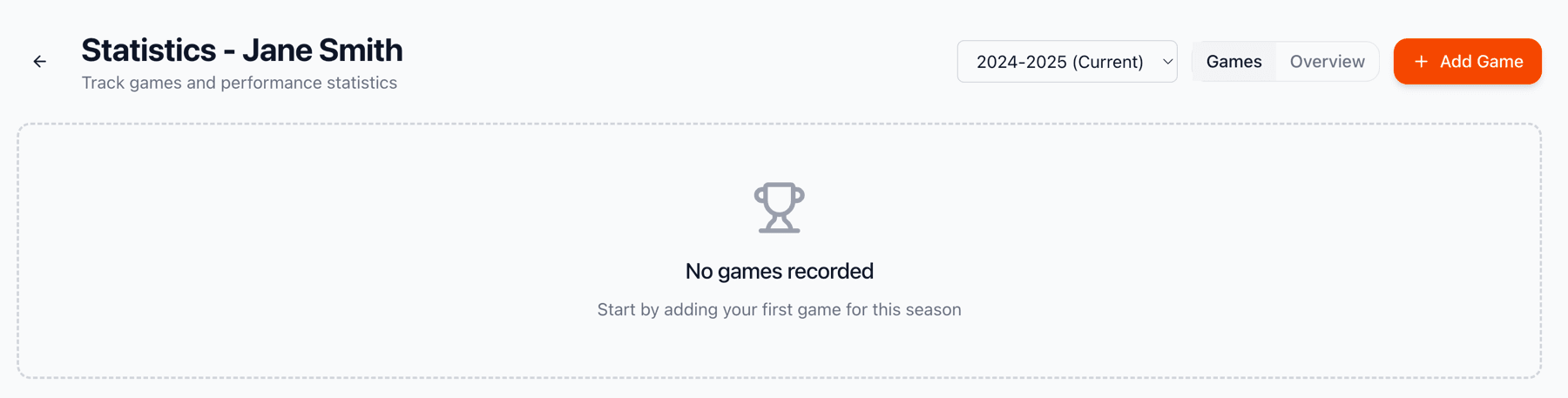
The statistics section has two main views: Games (list of all recorded games) and Overview (aggregate stats and trends). You can switch between seasons to view historical data. The Games view lets you add new games and see quick summaries, while Overview shows your player's statistical trends and averages.
When you first start, your stats dashboard will be empty. Click the '+ Add Game' button to begin recording your player's performance data. You'll start building a statistical record that grows throughout the season and over the years.
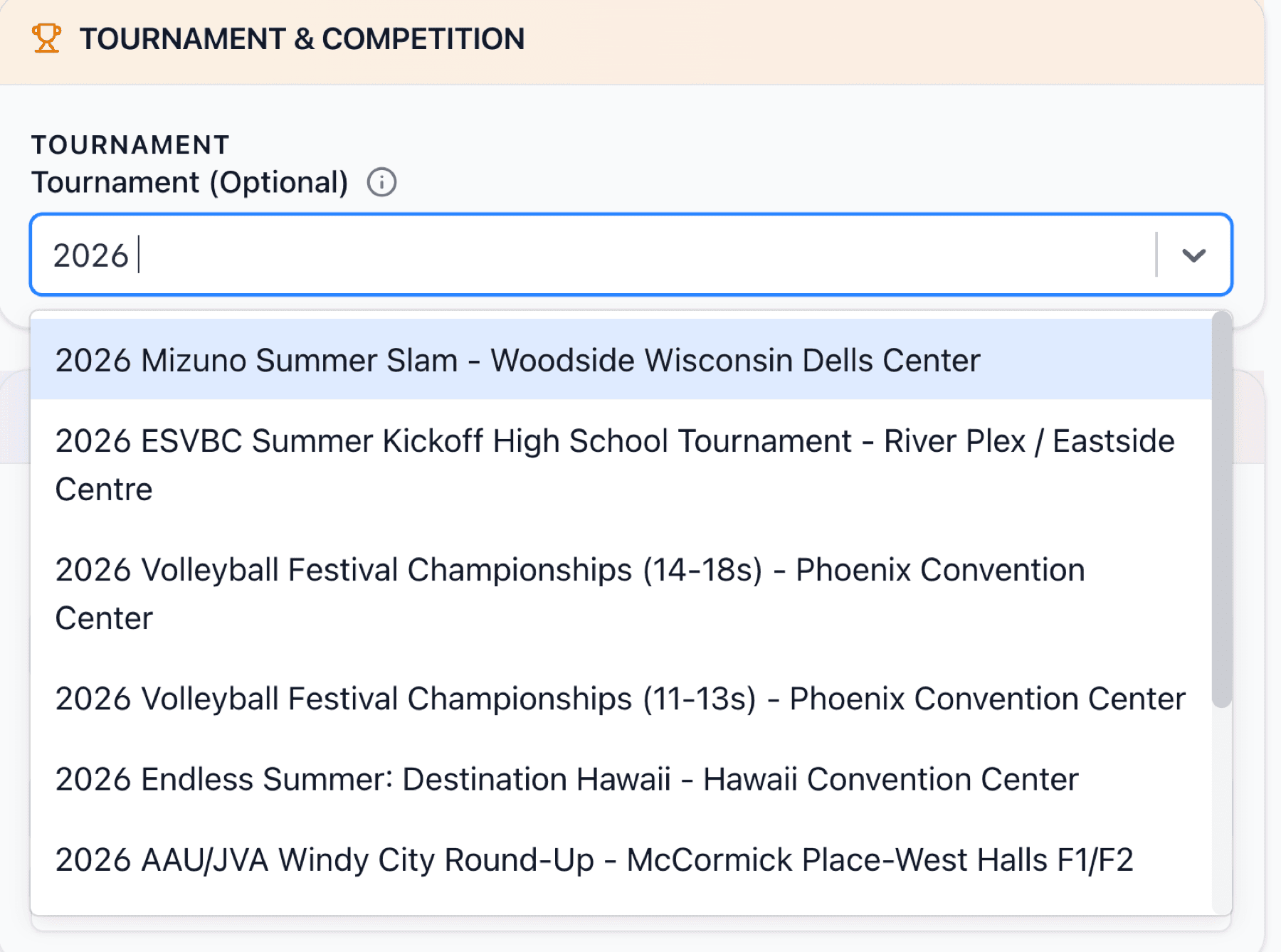
Before adding games, you'll need to select a tournament. ALWAYS search our database first! We have many tournaments pre-loaded from across the country. If your tournament is already there, just select it. This ensures consistency across all players who competed in the same event and helps us build a comprehensive tournament library.
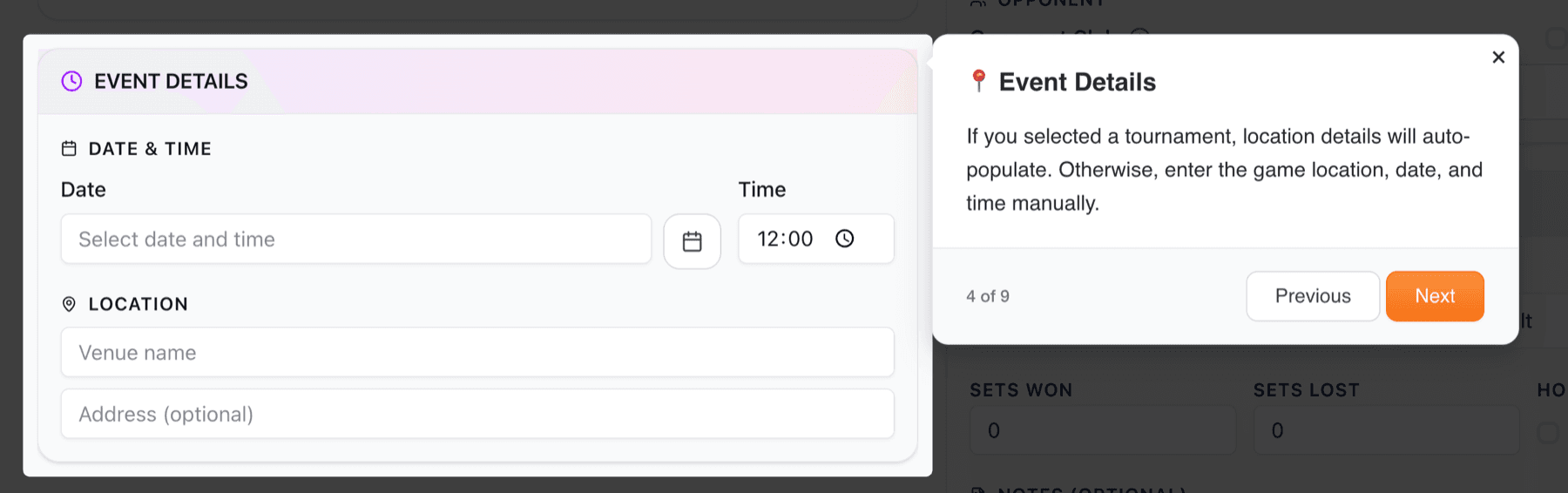
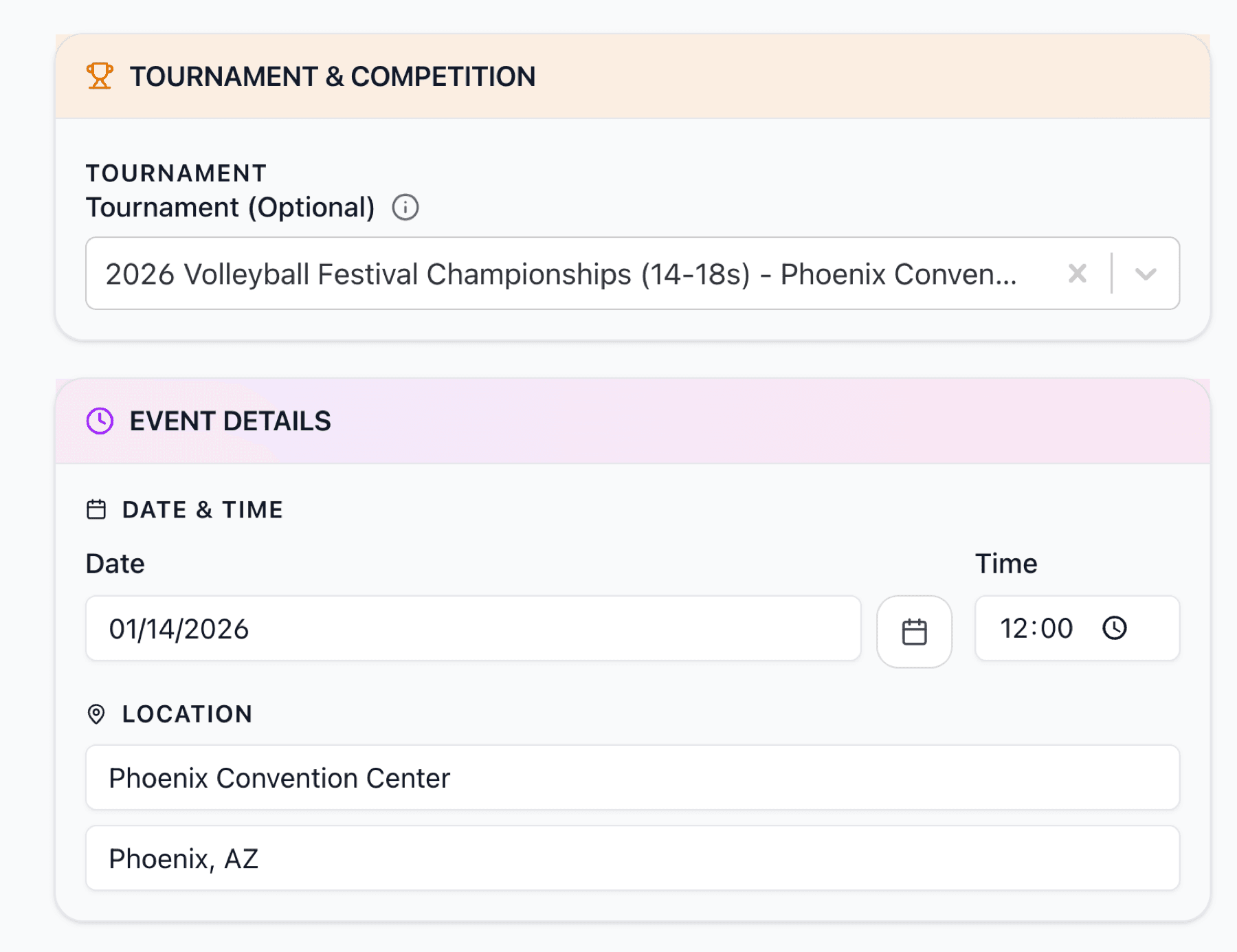
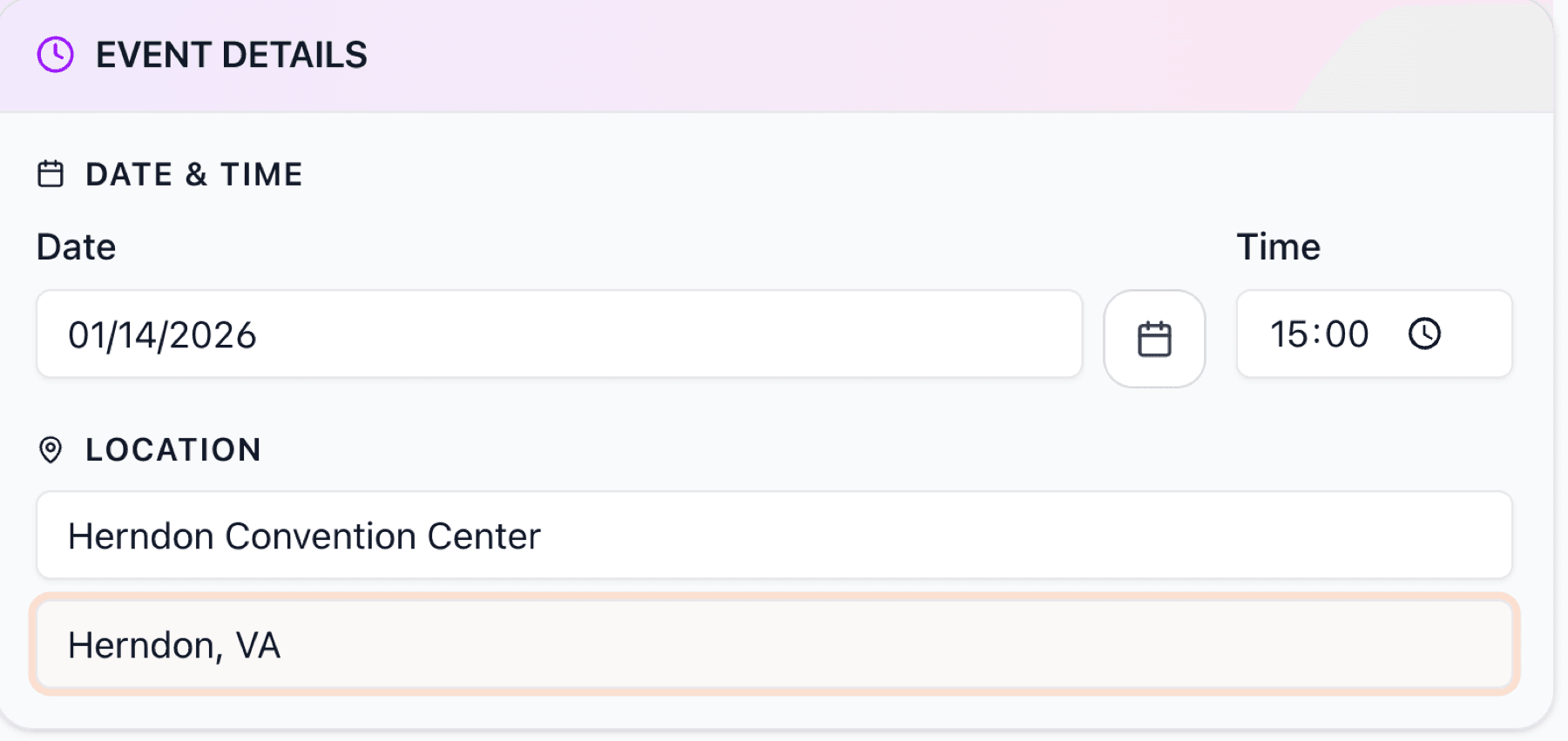
If the tournament is selected, the location details will automatically populate for you. You just need to enter exact date and time the game is taking place.
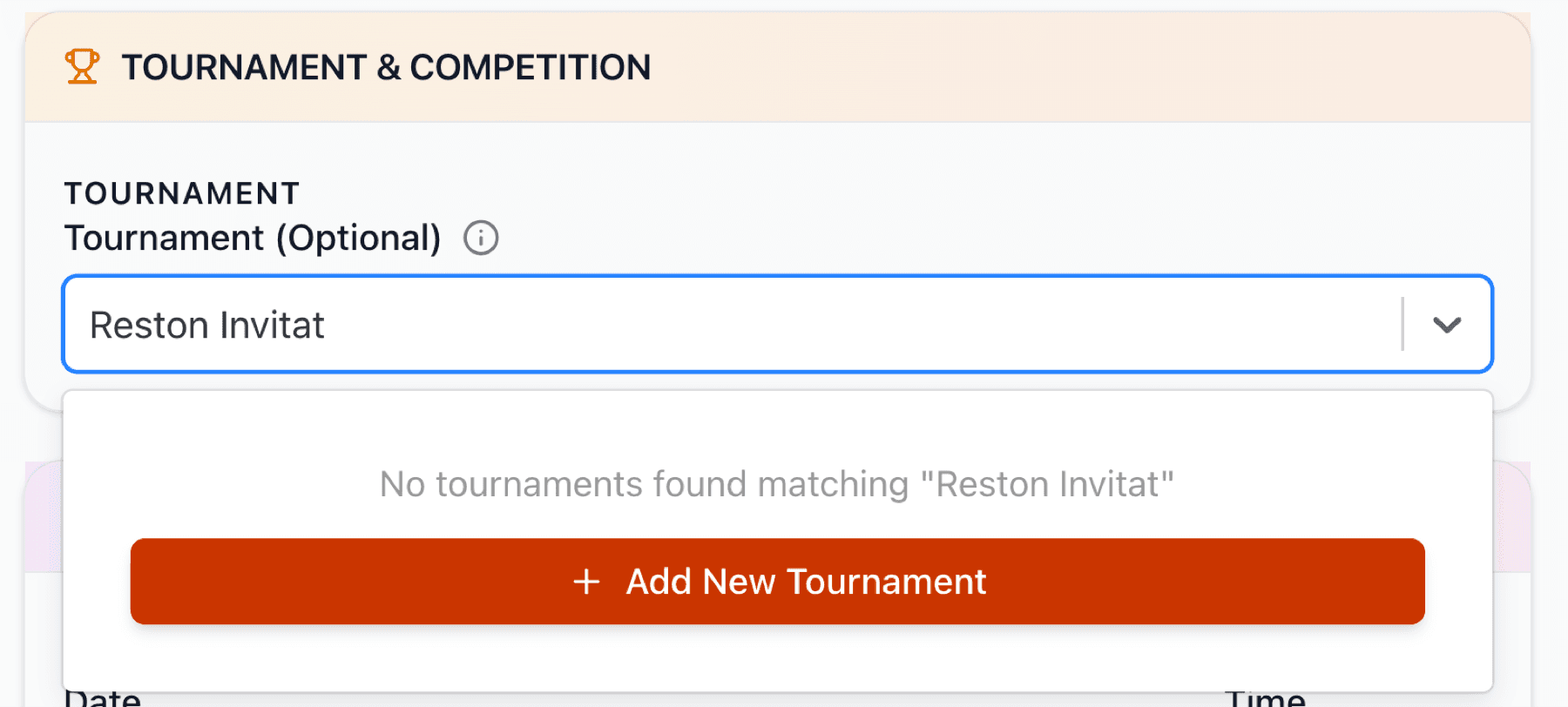
If you searched and your tournament is NOT in our database, only then should you click 'Add New Tournament'. This creates a new tournament entry. Before clicking, make sure you've thoroughly searched. Try different variations of the tournament name to try and locate existing Tournament
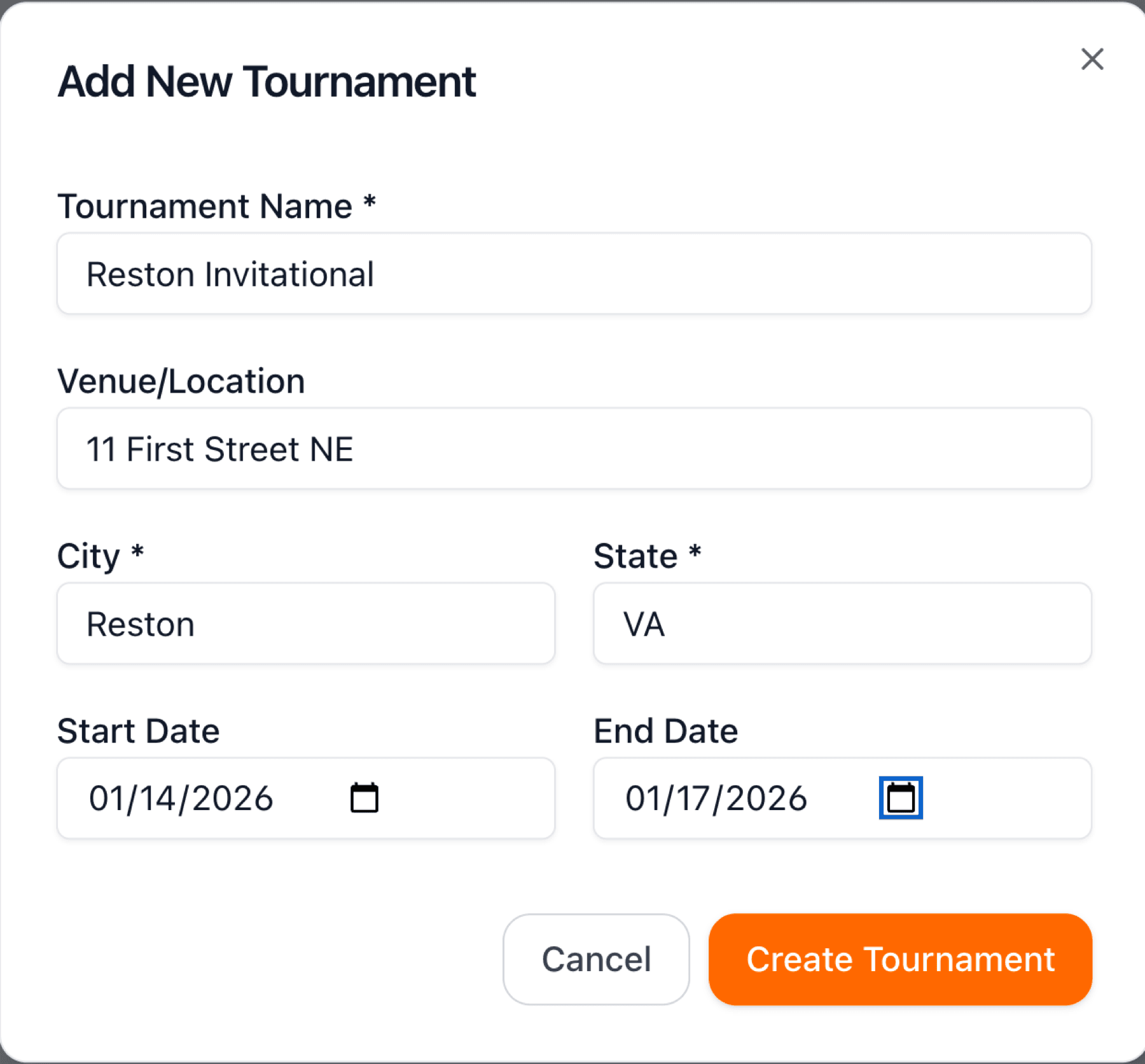
Enter the tournament name, venue/location, city, state, and dates. This creates a tournament entry that you can associate with multiple games. Common tournament names might be 'AAU National Championship,' 'Surf & Slam Invitational,' or 'College Recruiting Showcase.' Good tournament documentation helps recruiters understand the competitive level of your player's performances.
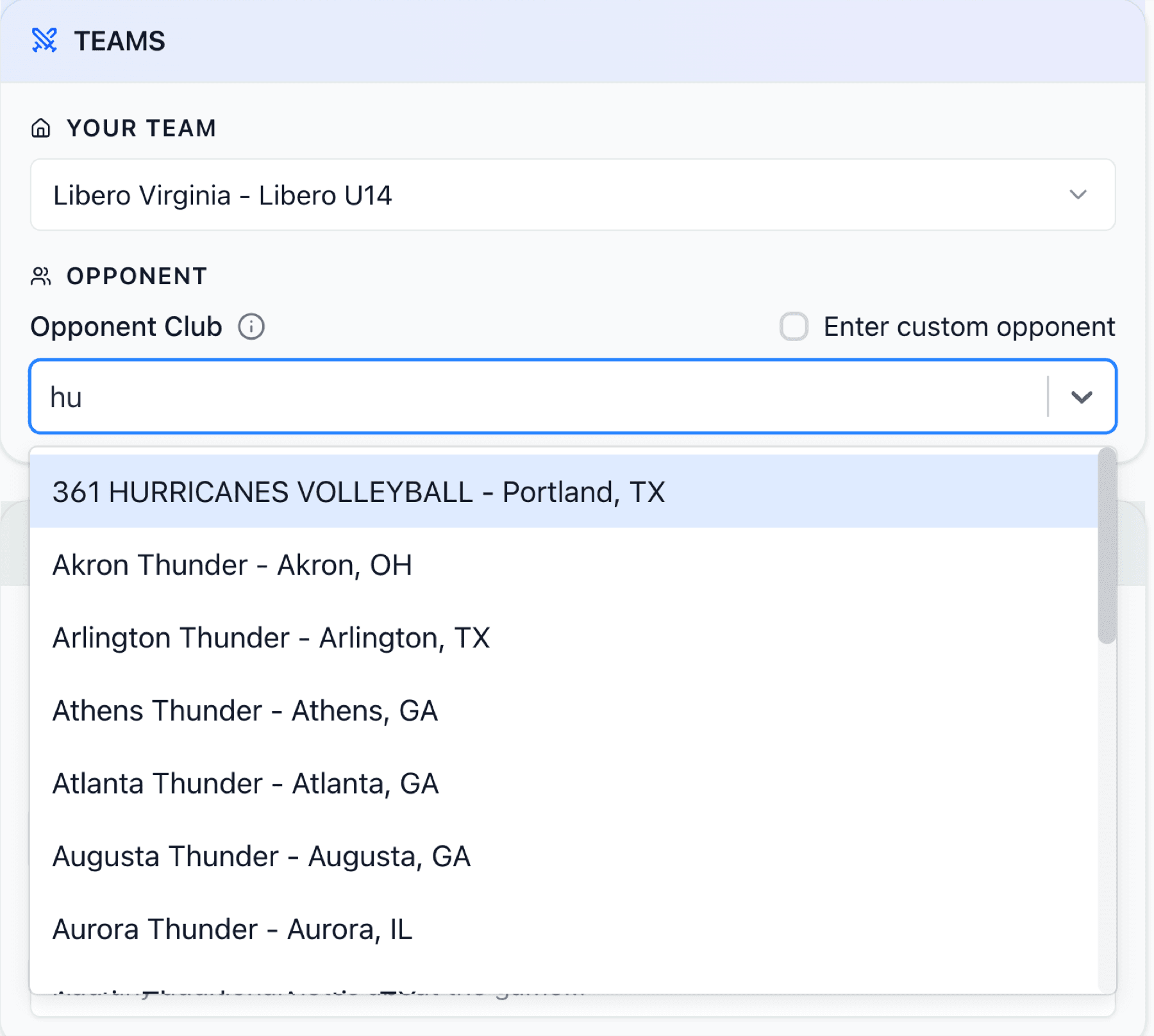
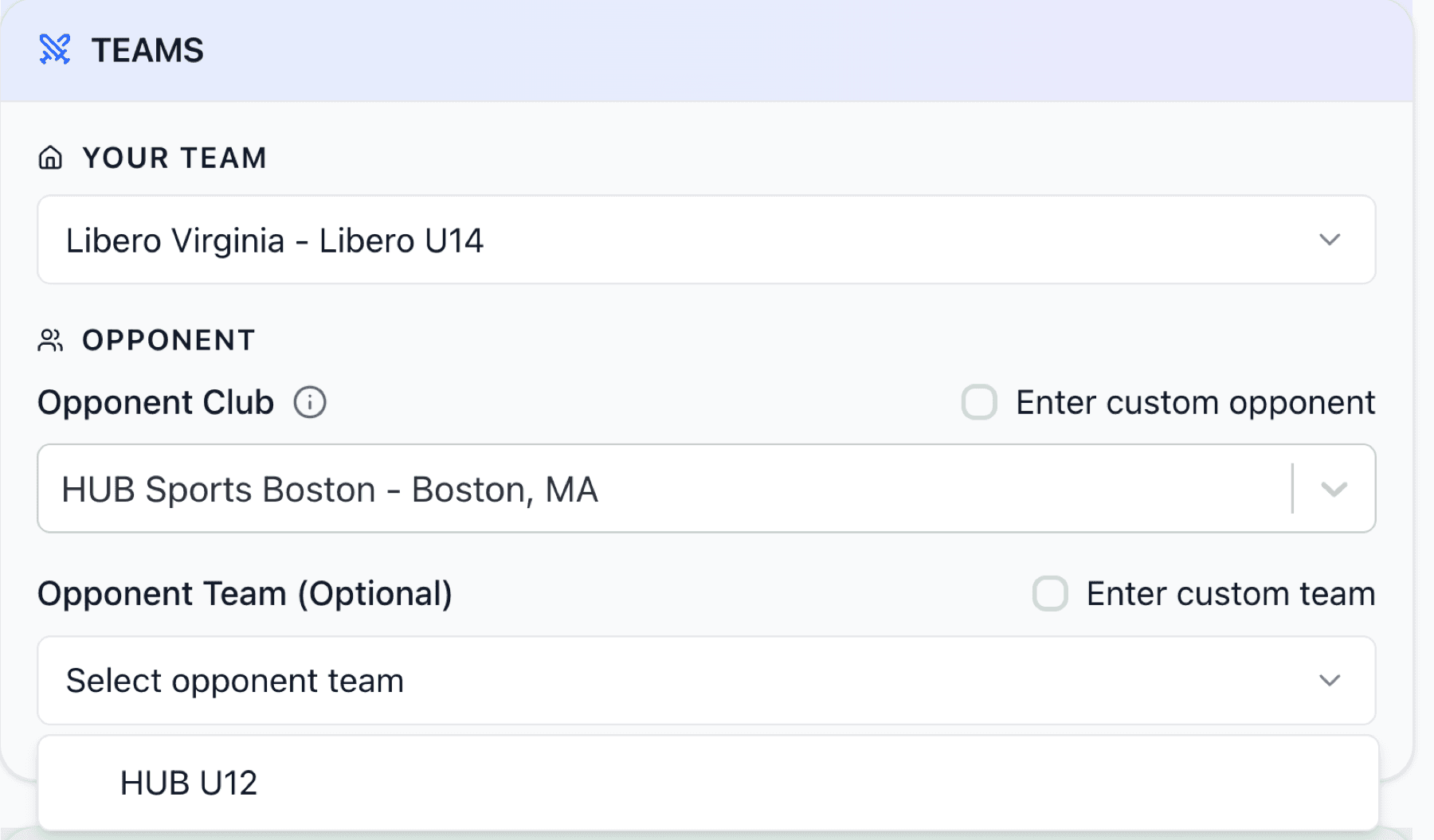
When adding a game, you first need to identify the opponent. Start by searching for their club. Type the club name and select from matches. Our system has thousands of clubs, so chances are the opponent's club is already listed. If not, you can create a new club entry just like you did for your own player's club. Just like Tournaments, we will review User entered Clubs and Teams and may merge them if we find existing Club or Team in the system.
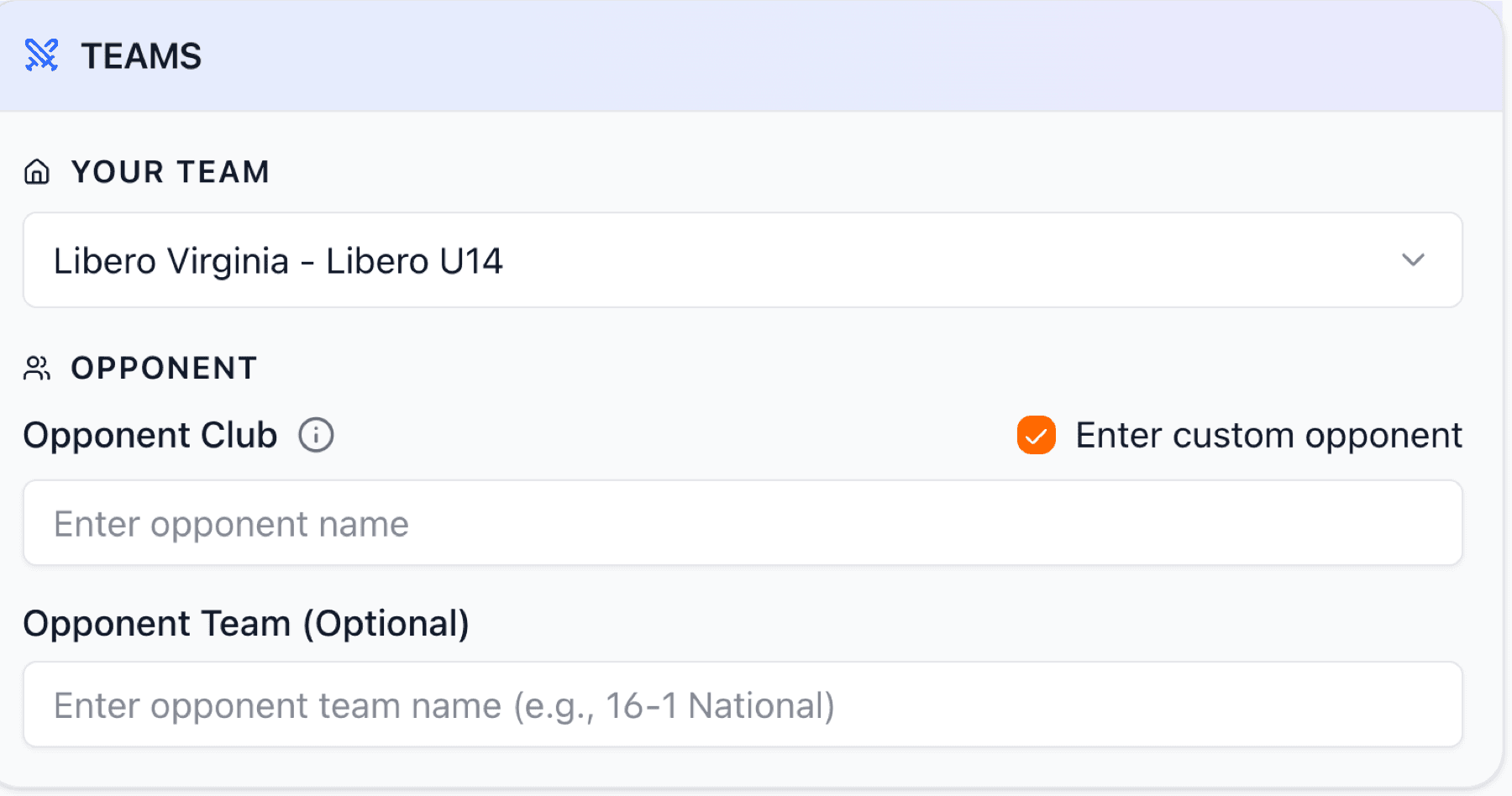
Choose the correct club from search results. Pay attention to location to ensure you're selecting the right club, as some clubs have similar names in different regions.
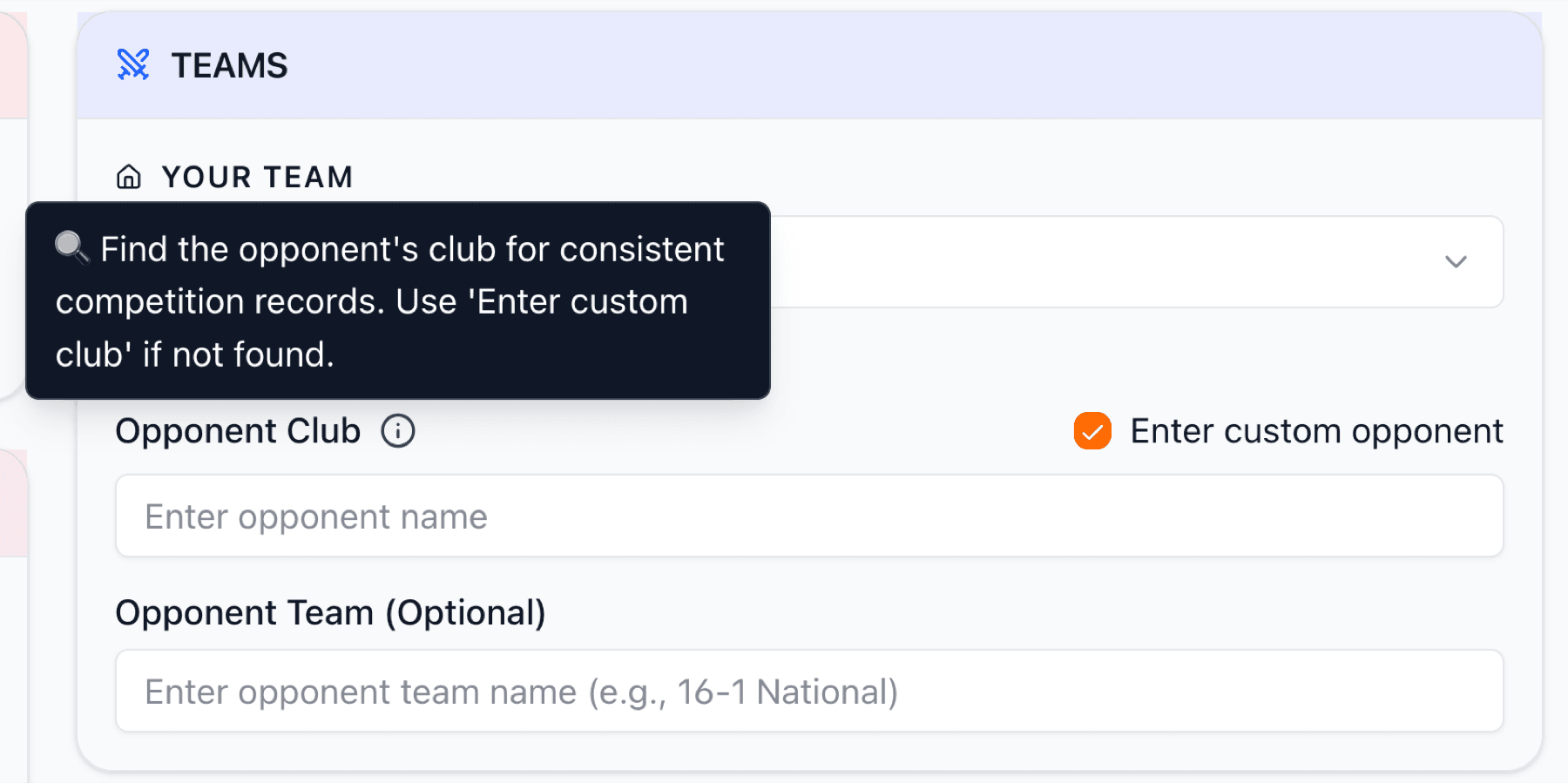
Once the opponent's club is selected, you'll see confirmation and move to the next step, selecting their specific team.
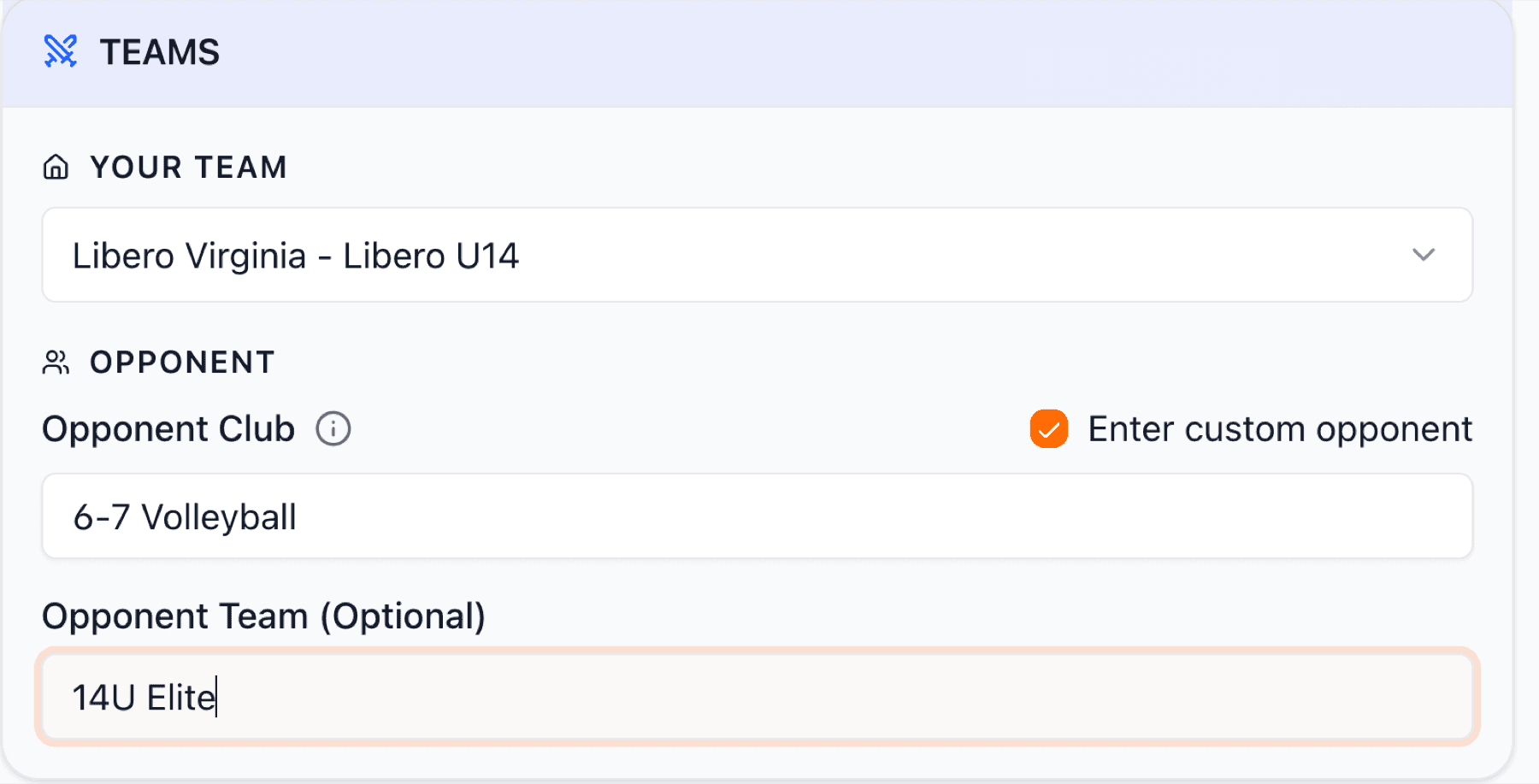
The opponent's club information is now recorded. You can see their club name and location.
Now choose the specific team within that club. Teams are organized by age group and level. Select the correct team to accurately record who your player competed against.
For simpler game entry, you can also just enter a location without full tournament details. This is useful for regular season games or when full tournament information isn't needed. Just enter location and city / state where the game was played.
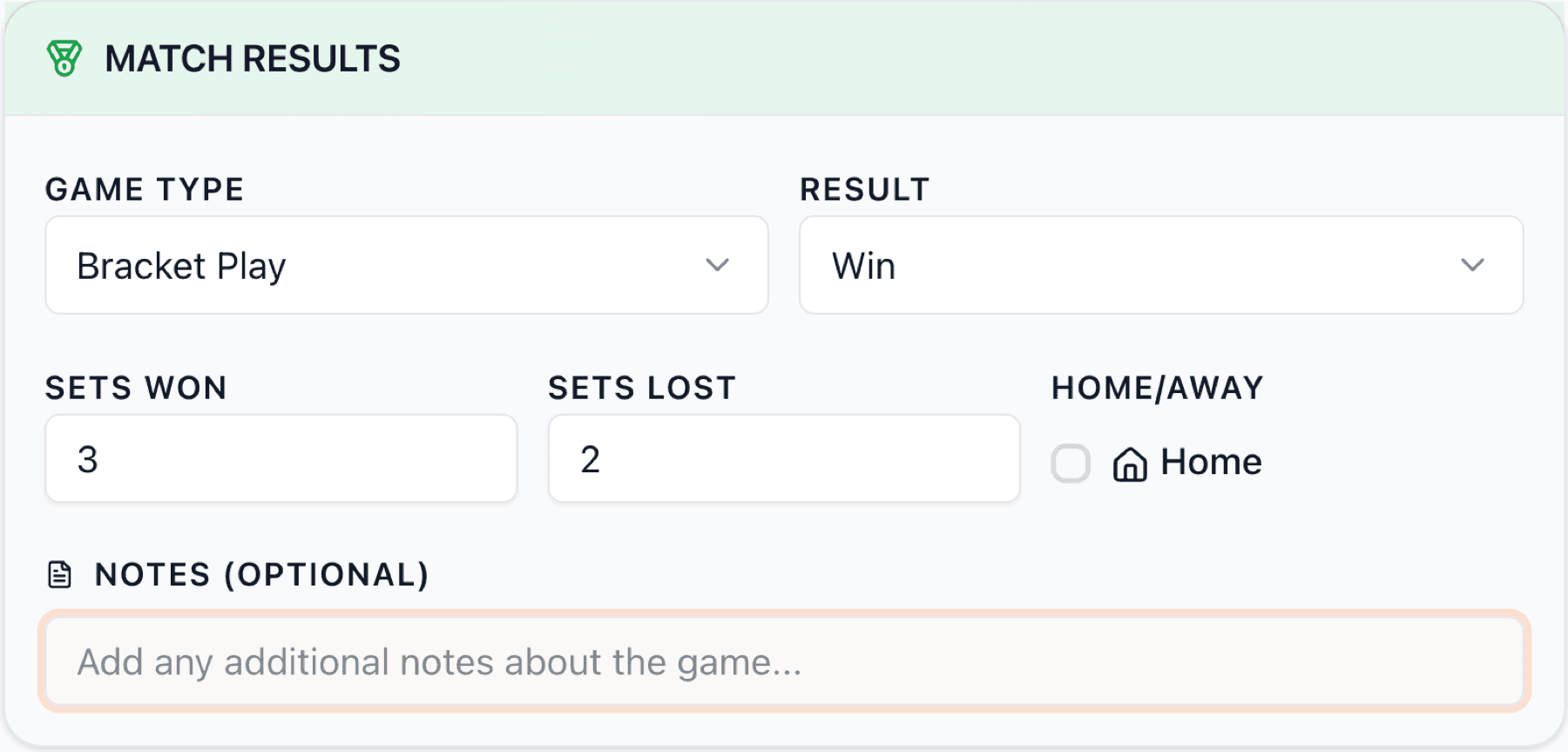
Record the match outcome by entering the score. The result will automatically adjust based on Sets Won / Lost entry.
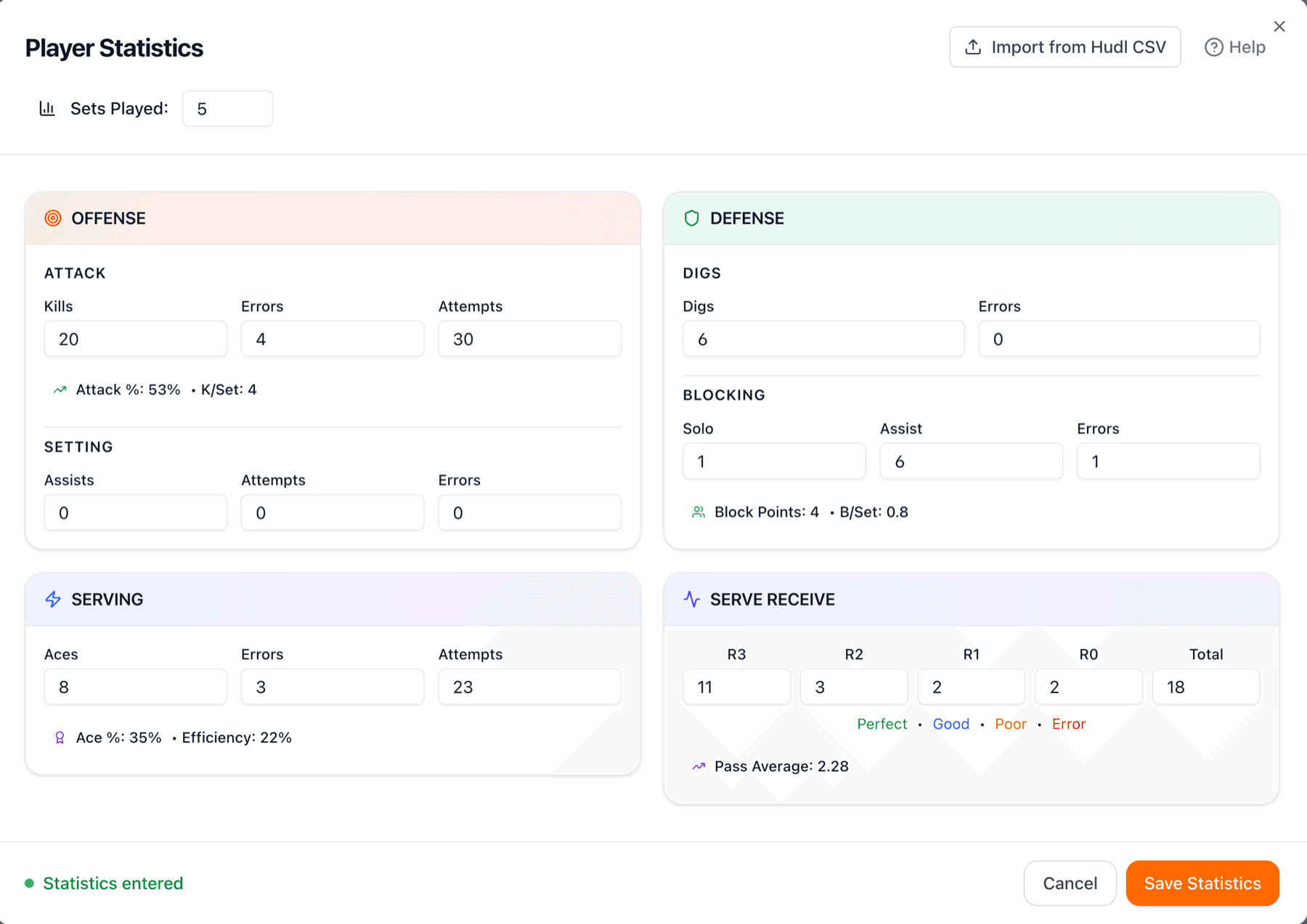
Our system tracks every aspect of volleyball performance. Keep in mind that you can fill in what you know and leave the rest blank. Even partial stats are valuable for showing trends over time.
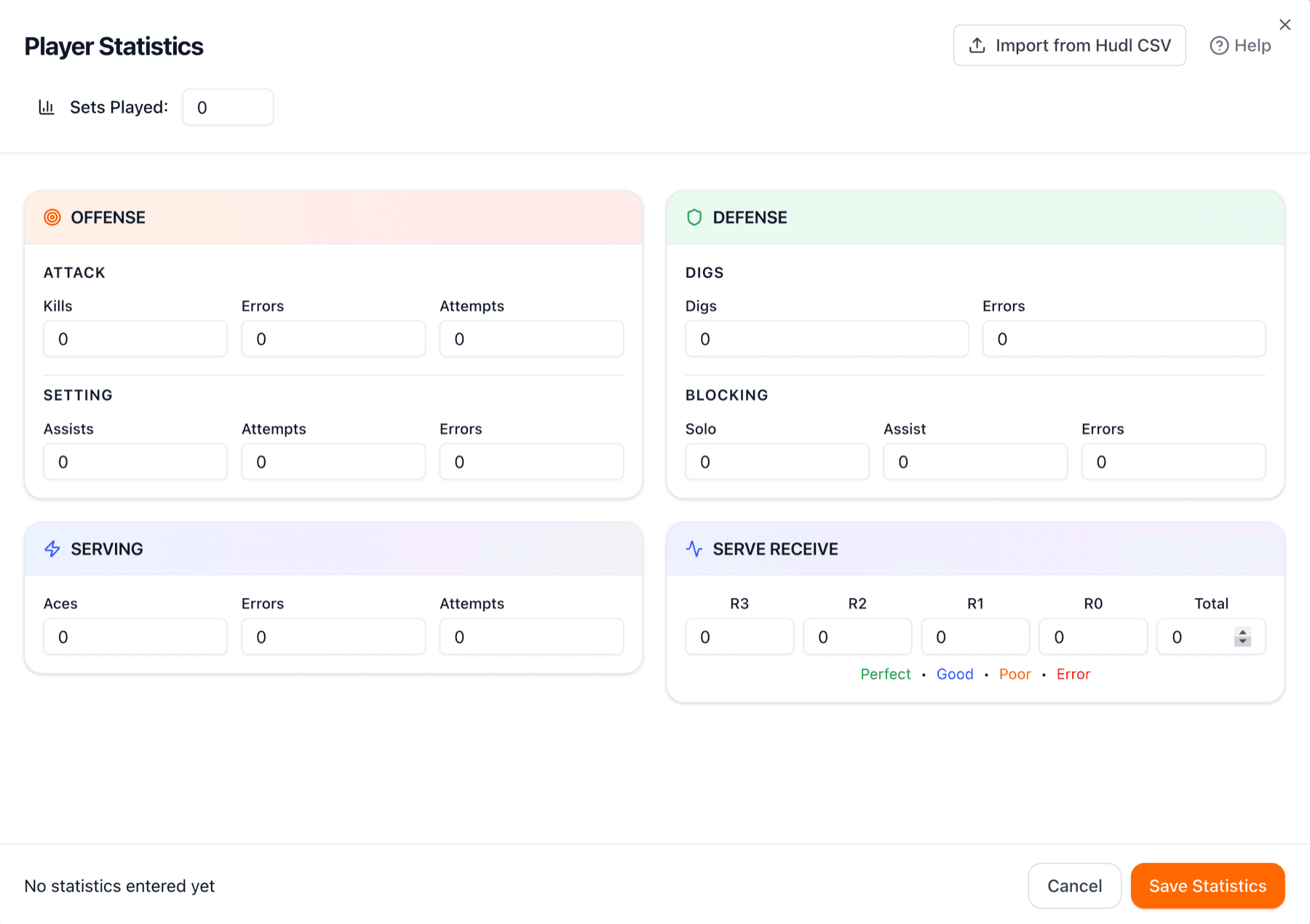
The stats form includes Offense (kills, errors, attempts), Defense (digs, errors), Setting (assists, attempts, errors), Blocking (solo blocks, assist blocks, errors), Serving (aces, errors, attempts), and Serve Receive (rated by quality: R3/perfect, R2/good, R1/poor, R0/error). You can also record sets played. Each category helps paint a complete picture of your player's performance.
Once you've recorded games, your stats dashboard will display all the games and stats summary. See total games played, current season record, and key statistics at a glance and see statistics graph over time on the Overview tab.
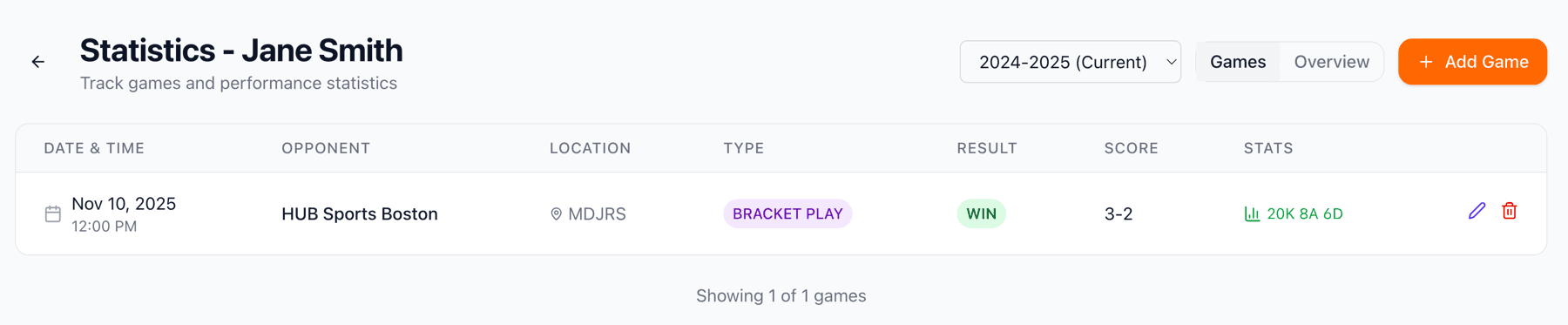
The Games tab shows all recorded games in a list. See opponent, date, result, and key stats for each game. Click on any game to view full details or edit statistics. This list view makes it easy to review your player's competitive history at a glance.
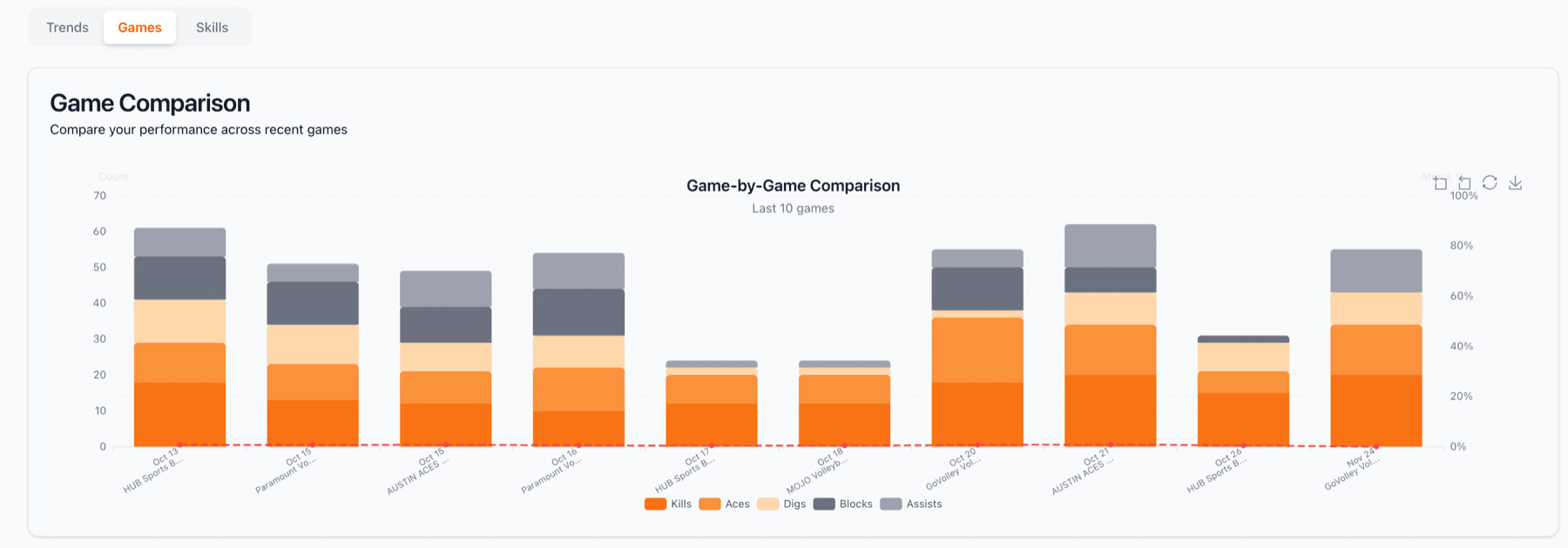
The Overview tab aggregates all your player's statistics. See cumulative totals, averages per game, and performance trends. This is where patterns emerge, is your player's kill percentage improving? How consistent is their serve receive?
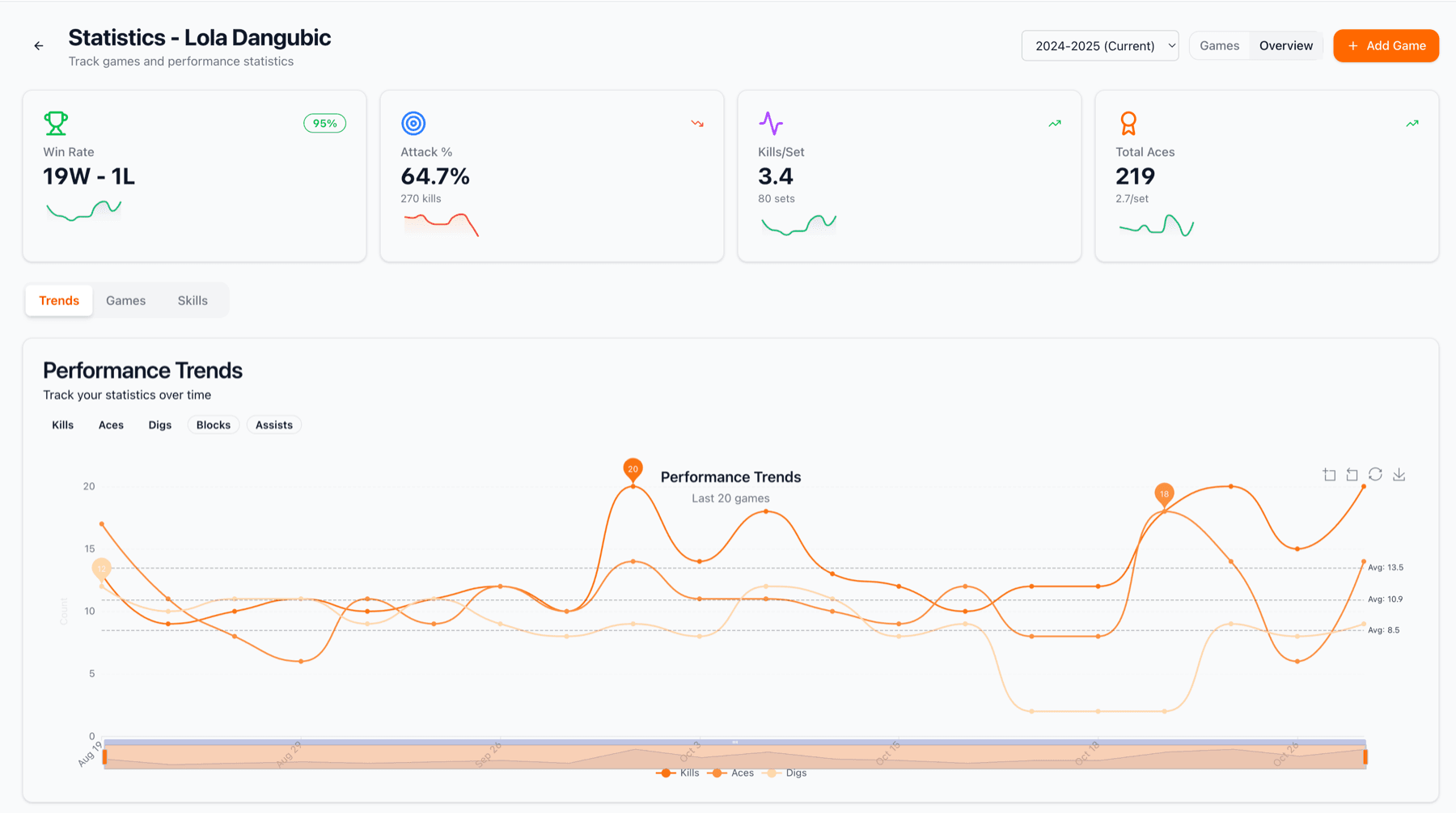
Scroll through the overview to see detailed breakdowns of every stat category. Hit percentage, serve receive ratings, block efficiency, all the metrics that college programs use for evaluation. Regular stat updates show recruiters that your player is serious about tracking and improving performance.
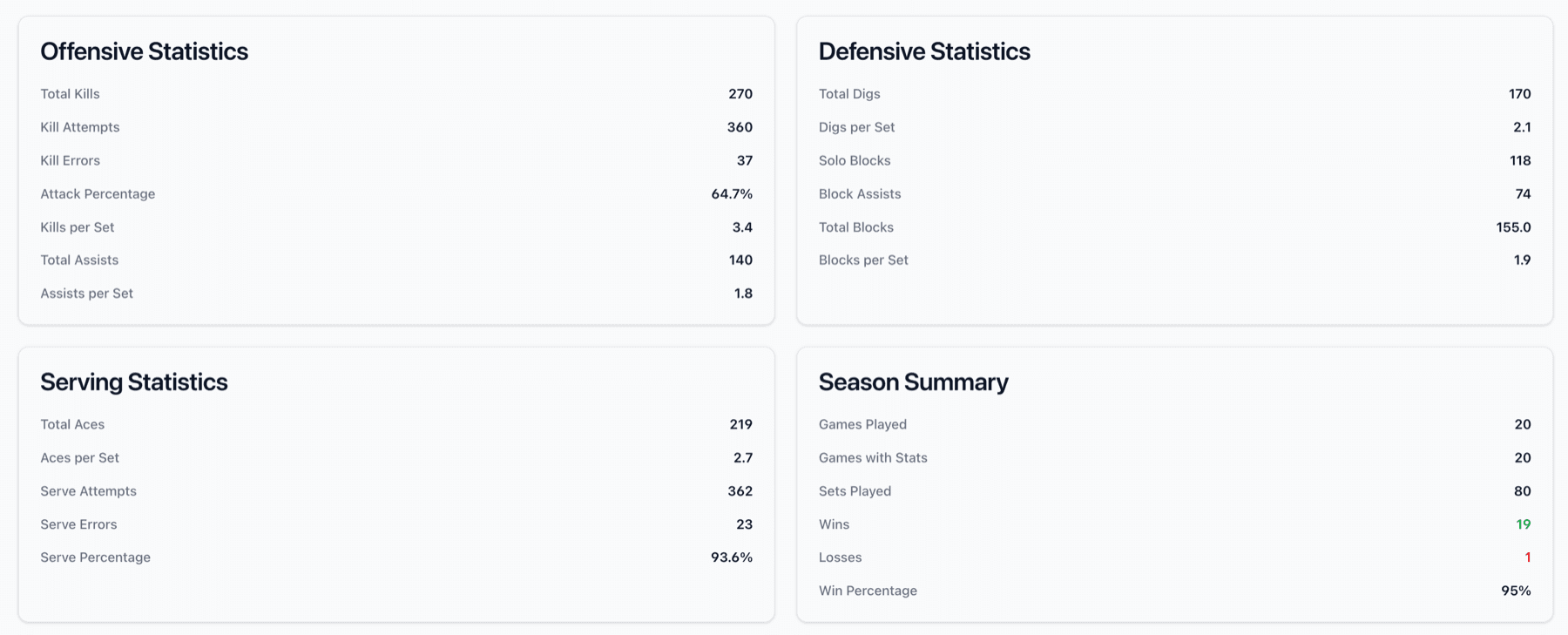
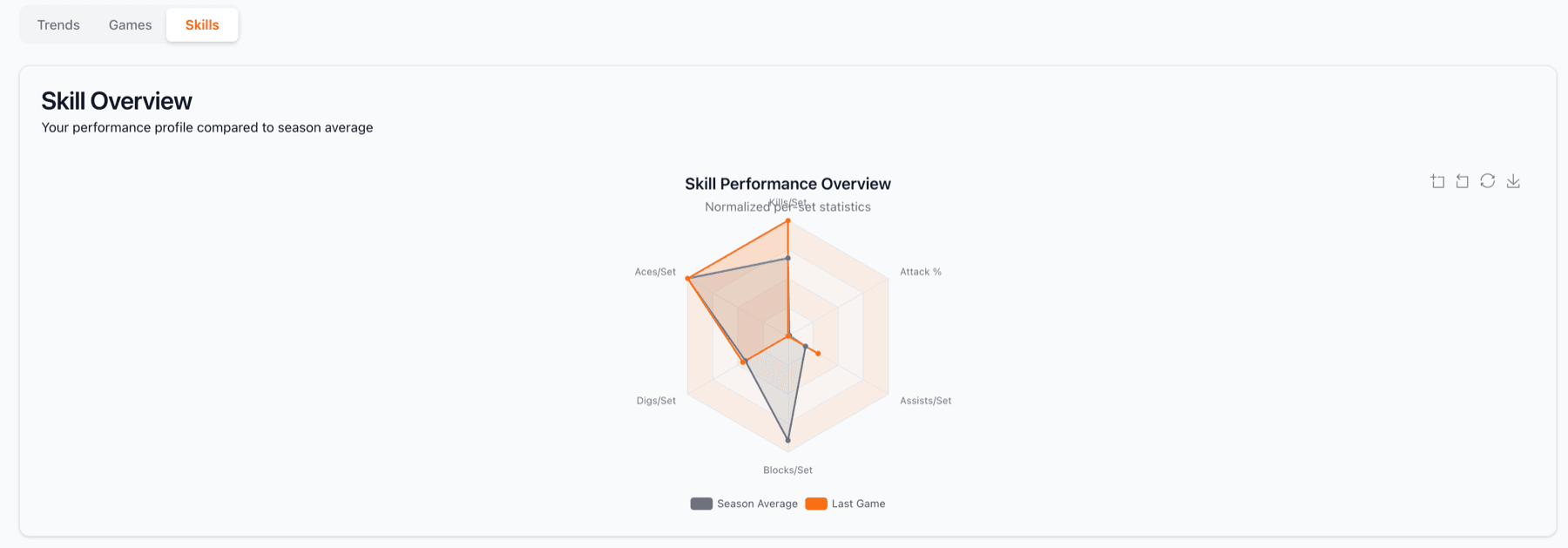
The Skills view organizes stats by specific skills: attacking efficiency, serving effectiveness, passing accuracy, and defensive prowess. This presentation helps to quickly assess your player's skill set and see where they excel.